Start here
Getting started
Fledge is a desktop space to bring your ideas to life with the agents you choose. Connect your repository, describe the idea, and keep the conversation, code changes, and checks together.
What you’ll need
- A Mac or a Linux machine with git installed.
- At least one supported coding agent, or a local or hosted model provider.
- A Fledge account and access to the repository you want to work on.
Install Fledge
Use the Download button for your platform: a macOS app, or an AppImage for Linux. You can also install from the terminal:
curl -fsSL https://my.fledge.build/install.sh | shOn first launch, sign in to your Fledge account in the browser. The app then stores the device token in your system keychain.
Stay up to date
Fledge checks for updates on its own, and you can check at any time under Settings → About. Finish running tasks before restarting to update.
Connect a project
- Connect your forge in Settings → Integrations. Fledge supports GitHub, GitLab, Bitbucket, and Gitea / Forgejo, including self-hosted instances. You can connect several accounts per host and pick one per project.
- Open My Projects and add your repository. Fledge clones it and detects setup and verification commands.
- Review those commands before starting work. They define how the project is prepared and how changes are checked.
You can also create a local project without source control, then connect it to a forge when you’re ready.
Choose an agent
Use the agent you already work with. Fledge supports more than 40 coding agents, including Claude Code, Codex, OpenCode, Pi, Qwen Code, Muse Code, DeepSeek, Antigravity, GitHub Copilot CLI, Amp, and Grok Build.
Open My Agents to install or update agents and to choose which one plans, writes code, reviews code, and writes tickets. You can sign in to several Claude and Codex accounts and see their usage limits as you work.
The built-in harness works with Ollama, vLLM, OpenRouter, and OpenAI-compatible endpoints. Your selected agent or provider handles its own usage and billing.
You can switch agents or models during a pair session. The same agent resumes its session; a different agent receives a compact summary of the conversation.
Pair & build
Open a project and start a pair session. Describe a specific change, then follow the replies, tool activity, and diff as the agent works.
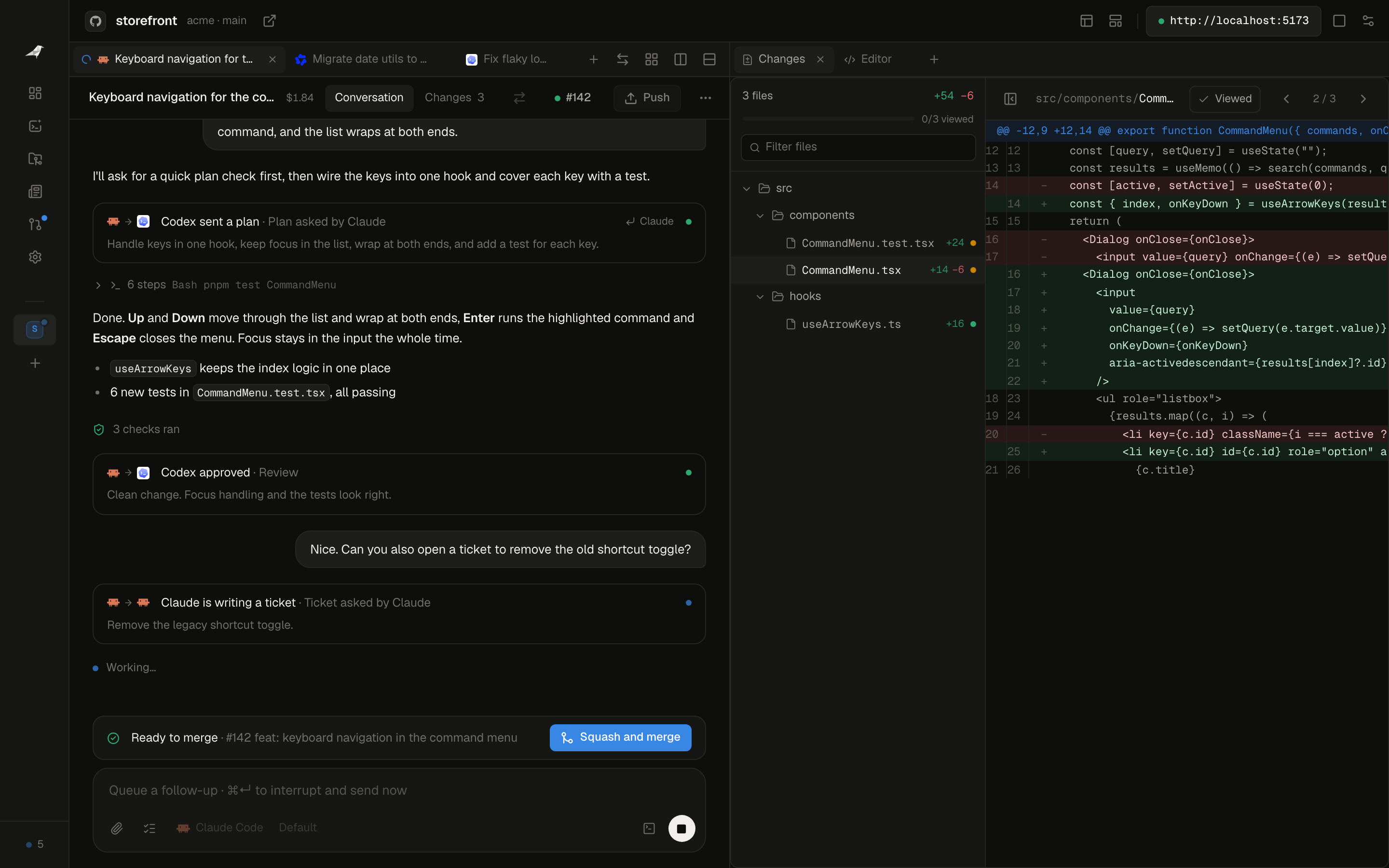
- Send a follow-up to steer the work without starting over.
- Paste or drop an image into the conversation to give visual context.
- Use Ctrl + ` to open a terminal in the session’s worktree.
- Ask another agent for a plan or review, or delegate a separate task.
Use layout presets to arrange the workspace for the task at hand, and press ⌘ + K to go anywhere in the app.
In the browser panel, Fledge mode lets you draw, talk, and leave comments on the live preview. The agent sees what you point at and resolves each comment.
Work on documents
Decks, workbooks, and documents (.pptx, .xlsx, and .docx) open in Fledge, where you and several agents edit them together. Each change appears as it lands.
- Select part of a document and ask for a change, or pin a note for the agents to follow.
- Watch agents work live, pause them to redirect, and revert any change from the history.
- Use Share to invite teammates with a code. Their agents then work on the same document with yours.
My Documents lists every document across your projects.
Run tasks in parallel
Write a ticket or import one from Linear. Each task gets its own git worktree and branch, so independent changes can run alongside each other.
When a task exceeds the diff budget, Fledge can split it into smaller parts. Independent parts run in parallel; dependent parts wait for the preceding change to merge.
Use the project’s Activity feed to follow progress and find work that needs your attention. A ticket and a pair session can be converted into each other as the work evolves.
Verify & review
Run Verify to check the change before opening a pull request. The checks cover the diff budget, code hygiene, project verification commands, evidence, and the pull request title. Adjust the playbook, gates, and skills agents follow under Settings → Standards.
A screenshot, reachable public link, or reproducible metric helps explain what changed. Select the screenshots that belong in the pull request.
Failed gates return to the same agent session. After a pull request is opened, Fledge watches CI and sends failing logs back to the agent so it can fix the existing change.
Review the diff, checks, and discussion together. You can request changes, approve, merge, or close the pull request from Fledge, subject to your forge’s permissions and branch protection.
Data & privacy
The workspace database lives on your machine. Tokens and device credentials are stored in the system keychain.
Your selected agent or model provider may receive code and context. Pull requests, evidence, and issue updates go to the services you connect.
Signed-in accounts also sync finished-run usage and activity: agent, model, tokens, cost, duration, project, task title, and activity messages. Ticket bodies, code, and diffs are not included in that account sync.
Troubleshooting
An agent won’t start
Check that the agent is installed and authenticated on your machine. For the built-in harness, check your provider configuration and whether its endpoint is reachable.
A verification command fails
Read the command output in the checks panel. Confirm that the repository’s dependencies and setup commands are correct, then give the failure back to the agent or rerun Verify after fixing the environment.
A repository or update can’t be accessed
Check the connected forge account or CLI session and confirm it has access to the repository. Self-hosted forges may require a token for the correct host.